
One schedule. In both places.
Keep Autopilot as the place you plan the work. Mirror upcoming jobs, estimates, and events into the Google Calendar you already check.
- Your future schedule
- Your Google Calendar
- Your assigned work
Your technician sees their work.
A technician's calendar follows the visits assigned to them. Your office can see work according to its role. Each person connects a separate account, so there is no need to share a Google login.
- Upcoming jobs, estimates, and visible events can appear in Google.
- Technicians see their assigned job and estimate work.
- Schedule changes flow from Autopilot to Google Calendar.
- Past entries are retained as they were last synchronized.
Stop checking two calendars for the same job.
When a visit moves in Autopilot, its upcoming Google Calendar entry can move with it. Your team gets another way to see the day without maintaining a second copy of the schedule by hand.
Connect your own Google account
Each team member connects their Google Calendar from their Autopilot settings. Upcoming work is mirrored to that account's primary calendar.
Schedule the work in Autopilot
Plan jobs, estimates, and events as usual. What appears in Google follows the work and visibility available to that team member.
Make schedule changes in one place
Update upcoming work in Autopilot. The connection updates its Google entries and removes canceled upcoming work from the mirror.
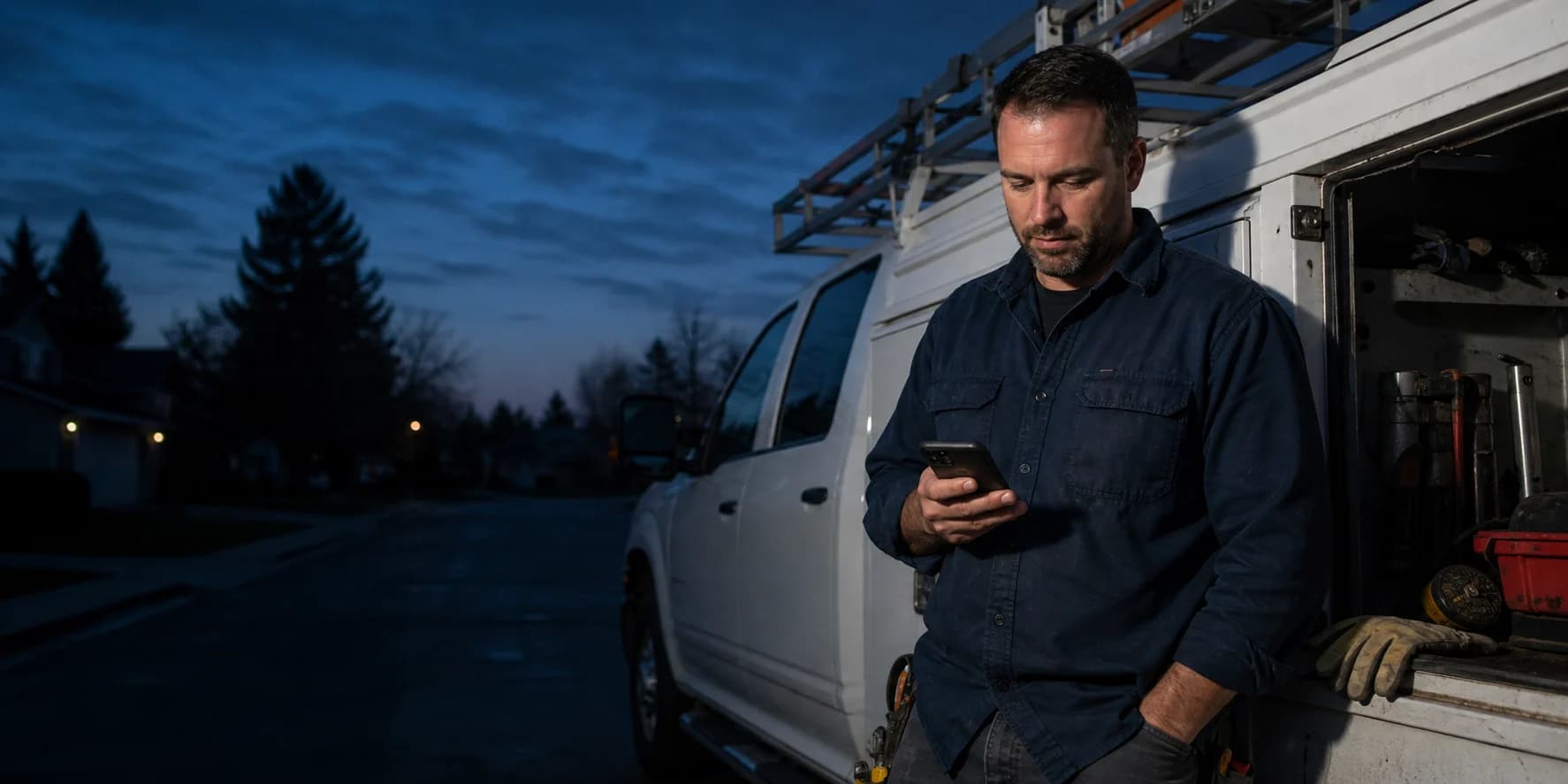
A quick look before the next stop.
Connect each team member's Google account and keep their upcoming Autopilot work visible in the calendar they already check.
See it with our team- businesses run on Autopilot
- 400+
- Google Play rating
- 4.9
- App Store rating
- 4.8
- per month starting price
- $49
Questions about Google Calendar
What to know before you put it to work.
Is this a two-way calendar sync?
Does everyone use one Google account?
Will a technician see every job?
What happens to canceled or past work?
See Google Calendar in your business.
Try Autopilot for yourself, or book a demo and walk through the work with our team.
Screenshots use sample records.