Autopilot
Autopilot 1.0

What’s new
in Autopilot.

New tools, useful improvements, and fixes for the things that get in your way. Here’s what changed, and when.

See what’s next
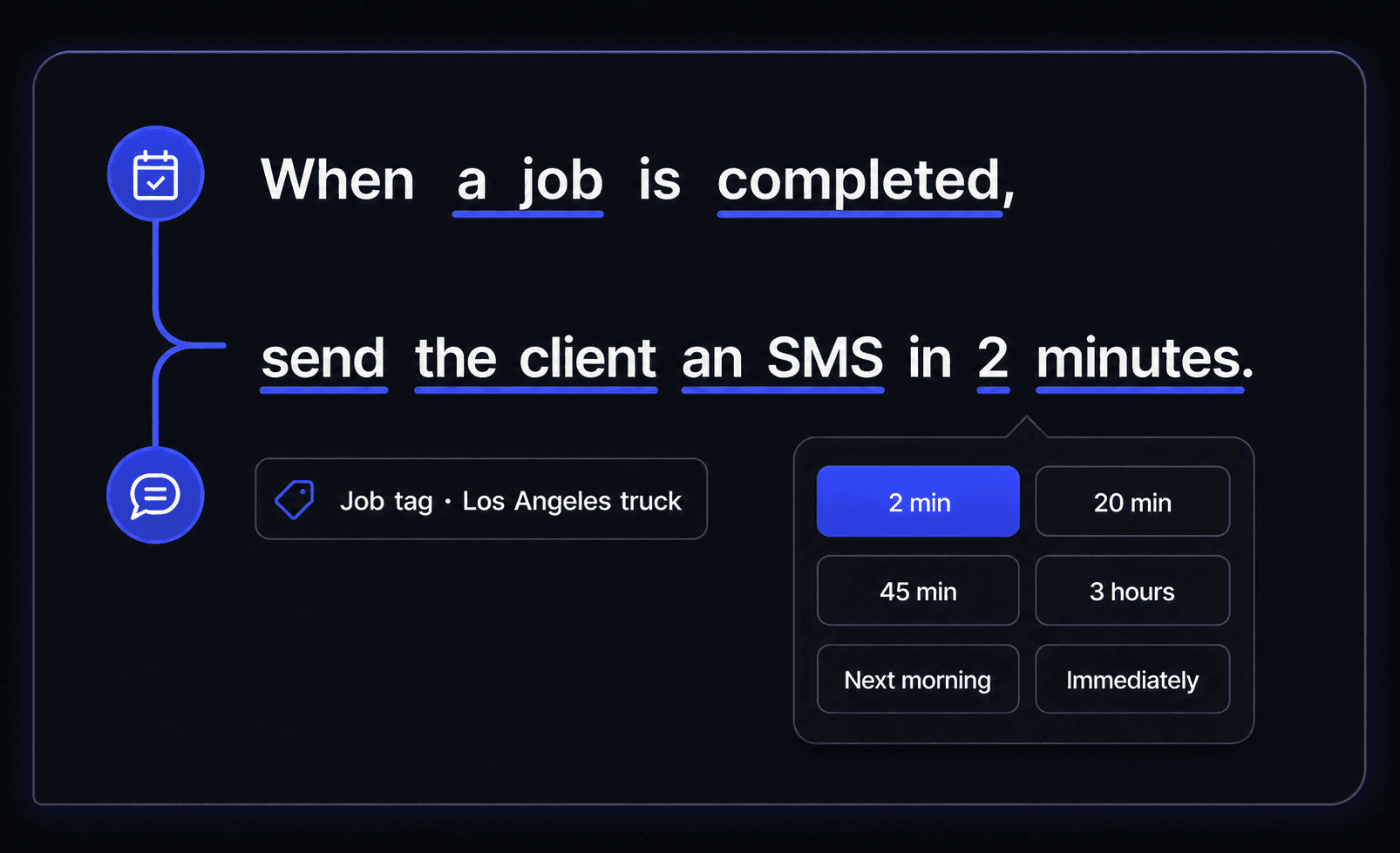
Automation Center preview: send a customer a text when a job is completed
Feature spotlight · August 16Set the follow-up once.

37 updates for your business

Let your AI receptionist book the job during the call

Your AI receptionist checks available appointment times and books the job while the customer is on the phone. It follows your online booking rules, handles corrections during the call, and offers a booking link by text when the caller prefers to book online.

Give returning callers less to repeat

When a caller's number matches an existing customer, your AI receptionist can look up their name and address on file, then confirm the details before booking.

Choose how your receptionist sounds and follows up

Write your own greeting, preview and choose a voice, and decide whether your receptionist can book appointments. You can also turn booking confirmation texts on or off.

Text usage is easier to follow

Each text counts as one message, even when the carrier splits it into parts. Standard job notifications are free. Automation history shows the text that was sent.

See how it works

Choose how customers can pay

Turn on supported bank payments and buy now, pay later options in Payment Methods. Jobs show a Pending payment status while a bank payment is still processing.

See how it works

Replies find the right customer

When more than one customer record shares a phone number, incoming texts go to the newest active customer.

Opening a job keeps its scheduled times

Your default job duration no longer changes an existing appointment when you open it. Copying an overnight appointment also keeps the correct next-day finish.

Ask drivers for photos at each stop

Choose which Driver Mode steps ask for a photo. Job galleries show photos and videos together with timestamps, so the office can follow what happened.

See how it works

Record how full each dumpster is

Choose quarter, half, three-quarter, or full levels. Prefer a simpler choice? Turn on Simple fullness in rental settings.

See how it works

Find the invoice from the jobs list

The Invoice column now shows the invoice number. Jobs without an invoice show a dash, making unbilled work easier to spot.

Get a warning before overbooking rentals

Autopilot warns your team when a job needs more rental units than you have available. Units picked up that day can be available for another booking.

Technicians see their assigned work

Corrected job visibility so restricted technicians see the work assigned to them.

See what happened to a customer email

Open Email History in Customer Communication settings to review customer emails and check their sending status. Available on web and mobile.

QuickBooks starts its first sync correctly

Fixed a setting mismatch that could prevent the initial QuickBooks sync from starting.

See how it works

Pick the right asset with less searching

The rental asset picker makes it easier to find and select the unit for a task.

Plan rental routes for several drivers

Build routes around each driver’s hours and starting location, with a route preview before saving the plan.

See how it works

Keep asset locations up to date

When a rental task changes an asset’s location or cannot be completed, your team can record where the unit ended up.

Give drivers a stop-by-stop workday

Driver Mode follows the saved route plan and walks your crew through the work at each stop. The asset stays connected as it moves through the route.

See how it works

Save a rental route for the crew to follow

Dispatchers can apply a rental route plan and keep its stops in order. The saved plan connects office planning with the driver’s day.

See how it works

An estimate keeps your lead as a lead

Creating an estimate no longer turns a lead into a customer. That change happens after a job is created successfully.

Hide the task timer when you do not need it

A new Jobs setting lets you hide the task timer from your team’s workflow.

Bring back a deleted record

Recently Deleted lets you restore jobs, customers, estimates, invoices, and other supported records. Find it under Account settings on web and mobile.

Updating a saved card finishes correctly

Fixed a payment-card update that could stay on the Updating screen instead of completing.

Set the follow-up once

Build rules for job changes, appointments, estimates, and overdue invoices. Send a text or email, notify your team, apply a tag, or send an update to a connected tool. Check run history to see what happened.

See how it works

Find a setting by asking Wally

Search settings by name or ask a question in your own words. Wally gives you a short answer and links to the relevant settings on web and mobile.

See how it works

Charge a saved card when the job is done

Enable auto-billing for a customer and choose their default card. When you complete a job, confirm the charge and send the receipt.

See how it works

Drag the whole job card to reorder stops

Reorder flexible stops by dragging the card in the map list or mobile schedule list. Appointments with set times stay in their scheduled order.

Manage more of your business from your phone

Company details, document themes, phone settings, booking options, integrations, and more now have mobile controls.

See how it works

Let customers book rentals online

Customers can choose rental sizes and durations online. Availability checks help keep bookings within your available stock.

See how it works

Plan the rental run before leaving the yard

Preview an optimized route for rental work before applying it. See the proposed stops from the map on web or mobile.

See how it works

Send contracts and rental agreements for signature

Create reusable agreements, attach them to the work, and let customers sign online. Your team can manage contract settings on web and mobile.

See how it works

Keep track of your rental units

Manage assets, rental settings, and map locations from web and mobile. The office and crew can see where equipment belongs.

See how it works

Keep billing and service addresses separate

Store a customer’s billing address separately from the address where the work happens.

Give customers Good, Better, and Best options

Build up to three choices in one proposal. Customers can compare the options and approve the work they want. Create proposals from web or mobile.

See how it works

Put your business name first

Eligible plans can remove Powered by Autopilot branding from customer-facing pages using Company settings.

See your work in Google Calendar

Connect your own Google account for one-way syncing of upcoming jobs, events, and estimates. Technicians see their assigned work.

See how it works

A rebuilt calendar for the field

The mobile calendar has new views and job workflows to help your crew find the next appointment and manage the day.

See how it works

This archive covers customer-facing highlights from July 26, 2026 onward. Related changes are grouped together. Dates are recorded in Pacific time.

See what’s changed for yourself.

Start a free trial or book a walkthrough of the tools your business needs.