
You can talk to the founder.
Megan did. Here is part of our conversation.
August 17 and 18, 2025 · Selected support messages
Megan · Customer
is there a way to set up re-occuring jobs or any ical links integrations or zapier
Ryan · Cofounder
No, unfortunately that's not something we support yet, but we will in the future!

Andrew · Founder
Recurring jobs, very soon! Probably within 90 days.
Selected excerpts from our support archive, with wording preserved and intervening text omitted. Presented here as a chat excerpt. Megan's surname and photo are kept private. The replies describe the product at the time; the walkthrough below shows what changed.
Table of contents
Recurring jobs in Autopilot let you set up a repeating service visit without entering a new job from scratch each time. Create the job, turn on recurring scheduling, and choose the interval that matches the agreement with your customer.
Megan asked about this while evaluating Autopilot for her cleaning business. Her question also mentioned calendar links and Zapier. This article covers the recurring-job part of that request. Our separate Google Calendar guide explains the calendar connection we now support.
My reply in the chat was an estimate of when we might ship the feature. It is included as part of the original conversation, not a current delivery promise.
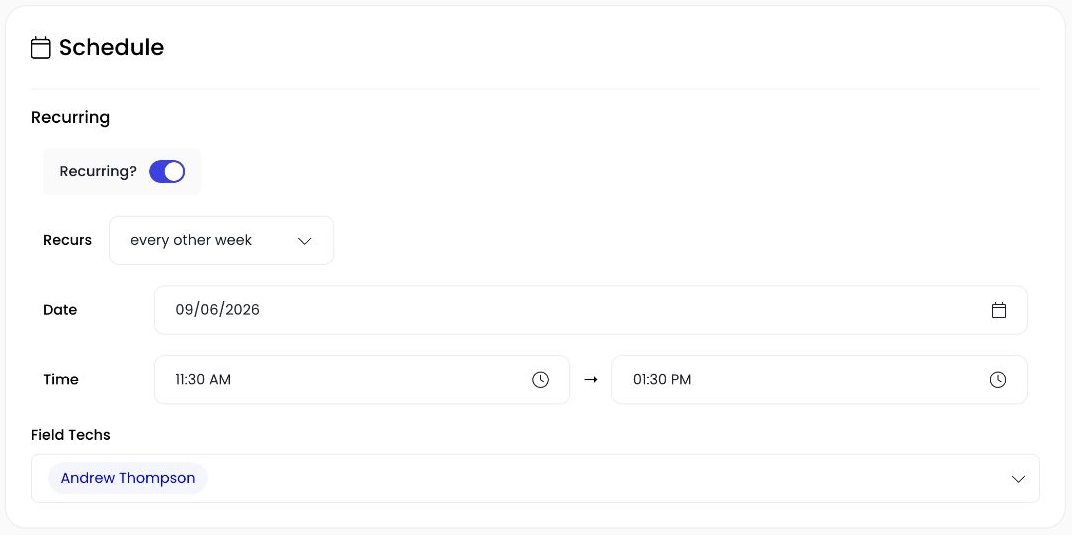
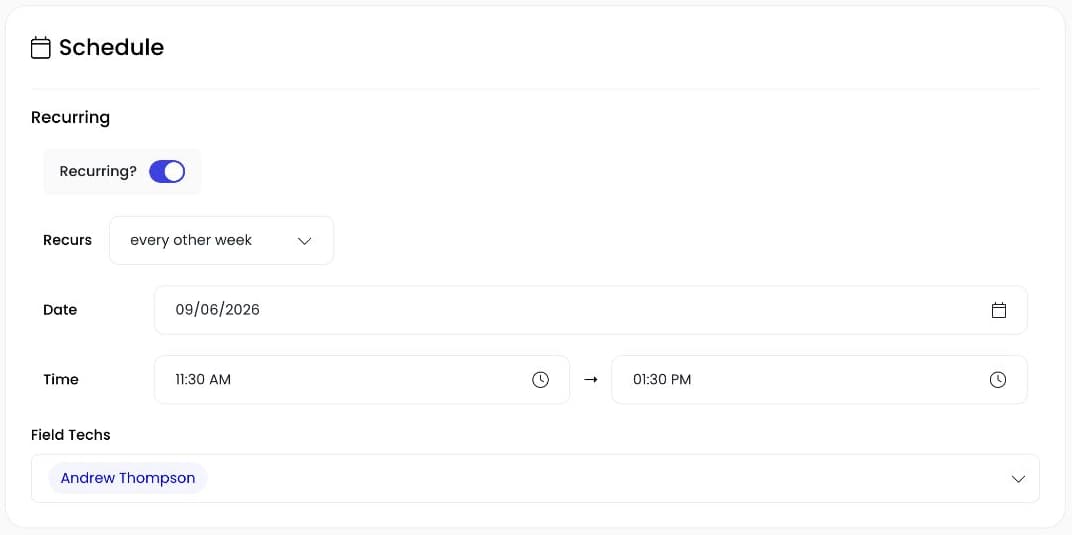
The actual new-job form with recurring scheduling enabled. This unsaved preview shows an every-other-week schedule.
When to use a recurring job
A recurring job suits work with a regular pattern: a weekly cleaning visit, a service every other week, or a monthly appointment at the same property. You agree on the pattern once, then use the schedule to plan the individual visits.
It is worth separating that from a job that takes several days. A cleanout that starts Monday and finishes Tuesday is one piece of work across multiple days. A cleaning appointment every other Tuesday is a repeating series. Autopilot treats those scheduling choices separately.
Set up the first visit
Open a new job and choose the customer and service address. Enter the first visit's date and time, assign the field techs, and include the details the team needs at the property.
Before turning it into a series, check the basics with the customer: which location, what work is included, how often you are returning, and when they expect the first visit. A wrong address copied into repeat visits is more work to untangle later.
For work that still needs a price, prepare the estimate first. A repeating appointment does not replace agreement on the scope or price.
Turn on recurring scheduling
In the job's Schedule card, enable the recurring option. The web form offers these intervals:
- Every week.
- Every other week.
- Every month.
- Every quarter.
- Every six months.
- Every year.
Choose the interval you agreed with the customer. Every other week and twice a month are different schedules. Do not choose one as a shortcut for the other if the dates matter to your customer.
The recurring option applies to a single-day job when you create it. Adding multiple days or using rental-task scheduling changes which options are available. If the recurring switch is absent, check how you have set up the job before assuming the feature is missing.
Check the visits on the calendar
Save the job and open your schedule. Check the first appointment and the upcoming visits. Confirm the date, time, and assigned team match what you intended.
Autopilot uses a recurring job template to create future visits. You do not have to create each one manually. That does not mean every possible future date will be visible immediately, so check the actual calendar range you are planning.
A recurring schedule also does not mean all visits are combined into one monthly invoice. Plan your billing separately from the appointment pattern. If you need a particular billing arrangement, confirm that workflow before promising it to a customer.
Changing one visit or the series
A customer may need to move one appointment while keeping the usual schedule afterward. Open the affected visit and pay attention to the scope of the change. The app has handling for individual occurrences and recurring-series updates; review the choice before you save.
The web form currently locks the repeat frequency on an existing job. Choose that interval carefully when creating the series; ask support about changing the pattern of an existing series.
After changing a visit, look at both the appointment you changed and the next one. That gives you a quick check that you moved the intended work without shifting visits that should stay where they were.
The same care applies to cancellations. Read the confirmation to see whether it affects one visit or the series. Avoid deleting and rebuilding a series just to handle one exception.
Put one repeat customer on the schedule
Start with a customer whose service follows a clear weekly or monthly pattern. Enter the first visit, choose the interval, and check the next dates together with your office or field team.
If your schedule has irregular exceptions, bring those to a demo. We can walk through the pattern you use and show you where individual visits and series changes fit.
Find more Autopilot guides on Google
Add Autopilot as a preferred source to see more of our latest advice in Google Search and AI results.