
A customer question worth answering.
Mason asked our support team about recurring-service contracts. Edward answered this exchange.
May 19, 2026 · Selected support messages
Mason · Customer
does autopilot allow me to make contracts for reoccuring services?
Edward · Support
Not at the moment, no, but we've had that request from other customers also so rest assured we have that on our list of future improvements and features.
Mason · Customer
or are there any work arounds?
Edward · Support
At the moment, no, but rest assured, we have this duly noted.
Selected excerpts from our support archive, with wording preserved and intervening text omitted. Presented here as a chat excerpt. Mason's surname and photo are kept private. The replies describe the product at the time; the walkthrough below shows what changed.
Table of contents
Autopilot now supports reusable contracts, agreements attached to customer or work records, and a customer signing page. You can prepare an agreement, send it for signature, and return to the record to check its status.
Mason asked about contracts for recurring services in May 2026. Our support team told him the feature was not available then. We added the contract workflow afterward.
This guide covers using the software to send an agreement. You supply the wording appropriate for your business. A signing tool does not decide your terms for you.
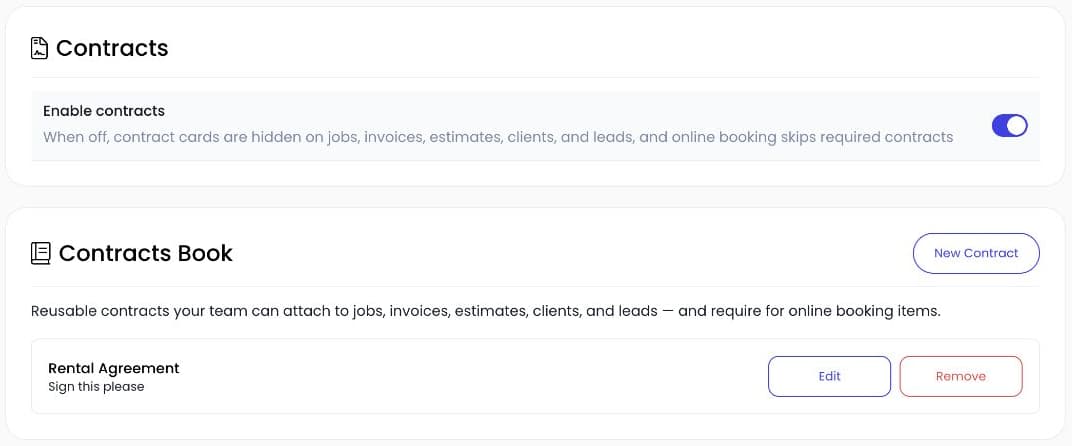
The actual Contracts settings screen and reusable Contracts Book. No customer agreement or signature is shown.
Start with the agreement you use
A recurring service agreement and a rental agreement can cover different work. The first may describe a regular service at a property; the second may describe equipment being delivered and collected. Choose the document that fits the actual arrangement.
Autopilot's contracts book lets you reuse a starting document. When you create a contract from that template, you can review the version for that customer before sending it. That is where you check the scope, dates, property, and any details that vary between jobs.
Avoid treating a saved template as finished customer paperwork. Reusing the text saves retyping, but the customer-specific review still matters.
Open Contracts in settings
Go to Settings, then Contracts. Check that contracts are enabled for your account and that your plan includes the feature. The contract cards depend on the account setting and access permissions.
Use the contracts book to manage text you expect to reuse. Give each template a name that makes sense to the person sending it. A name describing the service is easier to choose correctly than a list of near-identical documents called “Contract 1” and “Contract 2.”
The contracts feature page explains where this fits with the rest of Autopilot. For a repeating appointment pattern, see recurring jobs.
Add the contract to the relevant record
Open the customer or work record and find its Contracts card. Choose Add Contract. You can start from the contracts book or choose New Contract.
Review the title and body in the editor. If you start from a book template, the edits you make for this contract apply to this agreement. Check the customer and the linked work record before saving so you can find the document later.
If you write something you want to reuse, the create flow also has an option to save it to the contracts book. Save only the reusable wording there; avoid carrying one customer's details into the starting text for everyone else.
Send it and check the result
Use the contract's send action and choose the available delivery method. The send form includes email and phone-number controls. Verify the destination before sending an agreement to a customer.
The customer opens a signing page for that contract. After they sign, return to the contract record and check the status. Sending the link and receiving a signature are separate steps, so check the result rather than assuming delivery means completion.
Keep the agreement attached to the record you will use during the work. If someone calls about what was agreed, the office should be able to open the contract without searching a separate inbox for an attachment.
Contracts and recurring jobs do different work
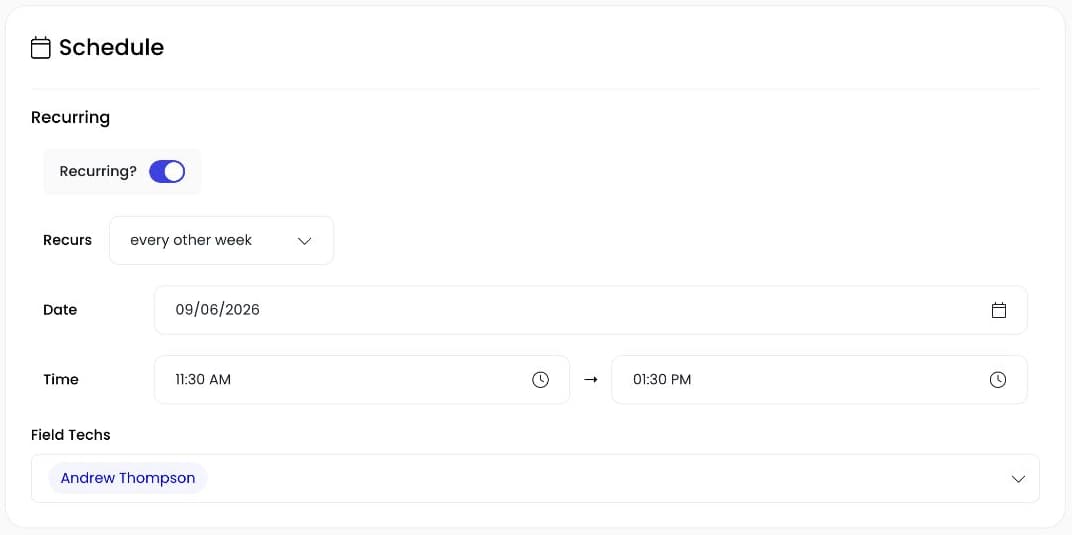
Mason asked specifically about recurring services. A contract can hold the agreement for those services. A recurring job creates the appointments your team uses to carry them out.
Creating the contract does not automatically create a recurring schedule. Likewise, a repeating job is not evidence that a customer has signed an agreement. Set up and check both when the arrangement calls for both.
This workflow also does not promise automatic contract renewals. If the term or scope changes, review the agreement and your process for getting the updated version accepted.
Try the workflow with your own document
Open your contracts book and choose the agreement you send most often. Check that its reusable text is current, then walk through adding it to the appropriate record and reviewing the send form.
If you are moving from another system, bring that document to a demo. We can show you how the template, customer agreement, and signing steps connect before you send it to anyone.
Find more Autopilot guides on Google
Add Autopilot as a preferred source to see more of our latest advice in Google Search and AI results.