
You can talk to the founder.
Bradley did. Here is part of our conversation.
August and September 2025 · Selected support messages

Andrew · Founder
Feel free to drop any notes or suggestions here anytime
Bradley · Customer
I will send over my list as well in the next week but biggest question is when there will be Google Calendar integration/synch? As of now, that is our biggest holdup to using this full-time.
Selected excerpts from our support archive, with wording preserved and intervening text omitted. Presented here as a chat excerpt. Bradley's surname and photo are kept private. The replies describe the product at the time; the walkthrough below shows what changed.
Table of contents
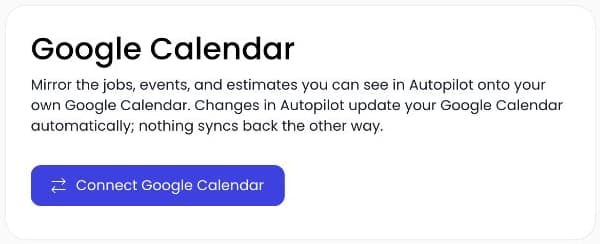
Autopilot can copy the jobs, events, and estimates you can see onto your Google Calendar. Connect your Google account from Settings → Google Calendar, then keep making schedule changes in Autopilot.
The direction matters: changes go from Autopilot to Google Calendar. Changes you make in Google Calendar do not sync back into Autopilot.
Bradley raised this in a conversation with me about his suggestions for the app. He wanted a Google Calendar connection before using Autopilot full-time. We now have that connection, with the one-way behavior explained on the settings screen.
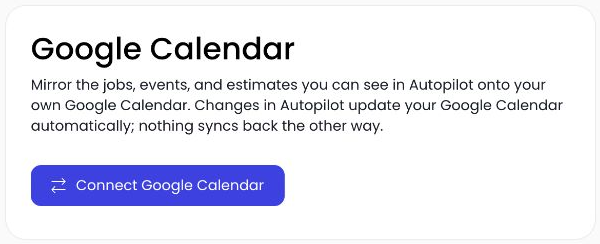
Actual Autopilot settings screen, captured September 6, 2026. No Google account was connected for this screenshot.
What appears in Google Calendar
The connection mirrors the scheduled jobs, events, and estimates visible to your Autopilot user. It is a per-user connection: each team member manages their own Google account connection.
That distinction matters when several people share responsibility for the schedule. Connect the account you want to use for your own calendar view. Do not assume one person's connection links every employee's Google account.
The integration follows what you can see in Autopilot. It is not a way to bypass permissions or pull another person's private work into your calendar.
Connect your Google account
Open Settings in Autopilot and choose Google Calendar. Select Connect Google Calendar and follow the Google account and permission prompts. Check which account you are using, particularly if you are signed into both a personal and a business account.
When the connection is complete, return to the settings page. The connected view identifies the Google account and gives you a sync control. Make sure it is the account you intended to connect.
The feature is subject to your account's plan access. If it is locked, check current plans or ask support which plan includes the integration before changing your subscription.
Check an appointment you recognize
Open Google Calendar and find a scheduled item you can identify from Autopilot. Compare its time with the original. Allow time for the connection to catch up rather than immediately creating a second copy yourself.
For estimates, first make sure the estimate has a scheduled visit. A quote without an appointment time is different from something you are expecting to see on a calendar. Our estimate scheduling guide shows how to set that up.
If an appointment appears at an unexpected hour, compare the calendar time-zone settings and the original appointment time. Check which Google account and calendar you are viewing before changing the job itself.
Edit work appointments in Autopilot
Use Autopilot when the job time, assigned work, or estimate visit needs to change. The sync carries the updated schedule into Google Calendar.
Dragging the copied event to a new time in Google Calendar does not reschedule the job in Autopilot. Your crew could still be looking at the original job time. Keep the source appointment accurate in Autopilot so the office and field team have the same instruction.
The connection also does not bring personal Google Calendar events into Autopilot or make them block online booking availability. If you need time held on the work schedule, manage that through the appropriate scheduling tools in Autopilot.
Pause, reconnect, or disconnect
The connected settings page lets you pause syncing. Resume it when you want updates to catch up again. If Google revokes access, the page can ask you to reconnect; complete that flow before expecting new changes to appear.
Disconnecting has a different result. The confirmation explains that Autopilot removes the events it created from Google Calendar and disconnects the account. Your original Autopilot schedule remains in place.
Read that confirmation before disconnecting as a troubleshooting step. If you only want to stop updates temporarily, inspect the sync control first.
Use Google Calendar as another view of the day
The useful setup is straightforward: your team manages work in Autopilot, and you can also see it in Google Calendar. Keep that direction clear with everyone who uses both.
Open Settings → Google Calendar to check your connection, or book a demo and ask us to show how a job change reaches the calendar. For the main work schedule, see Autopilot scheduling.
Find more Autopilot guides on Google
Add Autopilot as a preferred source to see more of our latest advice in Google Search and AI results.