Table of contents
- What is the Junk Removal Cost Calculator WordPress plugin?
- How does the junk removal calculator price a job?
- How does the calculator turn an estimate into a booking request?
- Can the calculator match an existing WordPress site?
- How do you install the junk removal calculator?
- Who should use this plugin?
- Frequently asked questions
- Install the free WordPress plugin
Most junk removal websites make customers ask for the one thing they want to know first: how much will this cost?
The customer fills out a contact form, waits for a call, sends photos, explains the pile again, and waits for a number. Meanwhile, the owner is driving, loading a truck, or standing at the dump. That back-and-forth is normal in junk removal, but it does not need to start with a blank form.
We built the Junk Removal Cost Calculator WordPress plugin to put a useful estimate directly on a junk removal website. A customer can select items, choose a truck-load size, or upload job photos for an optional AI estimate. When the price looks right, the same screen can collect the booking request.
The plugin is free and available now from the official WordPress plugin directory.
Key takeaways
- The plugin supports item pricing, truck-volume pricing, and optional AI photo estimates.
- Every price, label, color, image, load size, and booking setting belongs to the site owner.
- A built-in request form carries the estimate into the booking inquiry.
- It works through a shortcode and includes a native Elementor widget.
- Item and truck-volume pricing do not require an outside service.
What is the Junk Removal Cost Calculator WordPress plugin?
The Junk Removal Cost Calculator is a free, configurable estimate and booking plugin built for junk removal, hauling, cleanup, and similar service websites. Version 1.1.0 works with WordPress 5.8 or newer and PHP 7.2 or newer, according to the current WordPress.org listing.
We did not want another generic form builder that makes an owner wire together formulas, conditional fields, and third-party add-ons. Junk removal has its own pricing language. Operators talk about minimums, quarter loads, full loads, mattresses, stairs, heavy material, and awkward items. The plugin starts there.
Site owners get a catalog for individual items, a separate truck-volume price list, booking controls, email notifications, design settings, mobile previews, and Junkpath AI extra-fee settings when that optional service is connected. Customers get a clear path from “I have this pile” to “this is the estimated price” to “I want you to pick it up.”
The plugin carries the estimate into the request, so the owner receives the price context along with the customer's contact details and job information.
If you are still building the rest of the site around it, our guide to a junk removal website that books jobs covers the pages, mobile layout, calls to action, and follow-up wiring that belong around the calculator.
How does the junk removal calculator price a job?
The plugin gives you three pricing methods because customers describe junk in three different ways. One person knows they have a couch and two mattresses. Another sees half a truck. A third has a packed garage and would rather send photos than count anything.
Specific item pricing
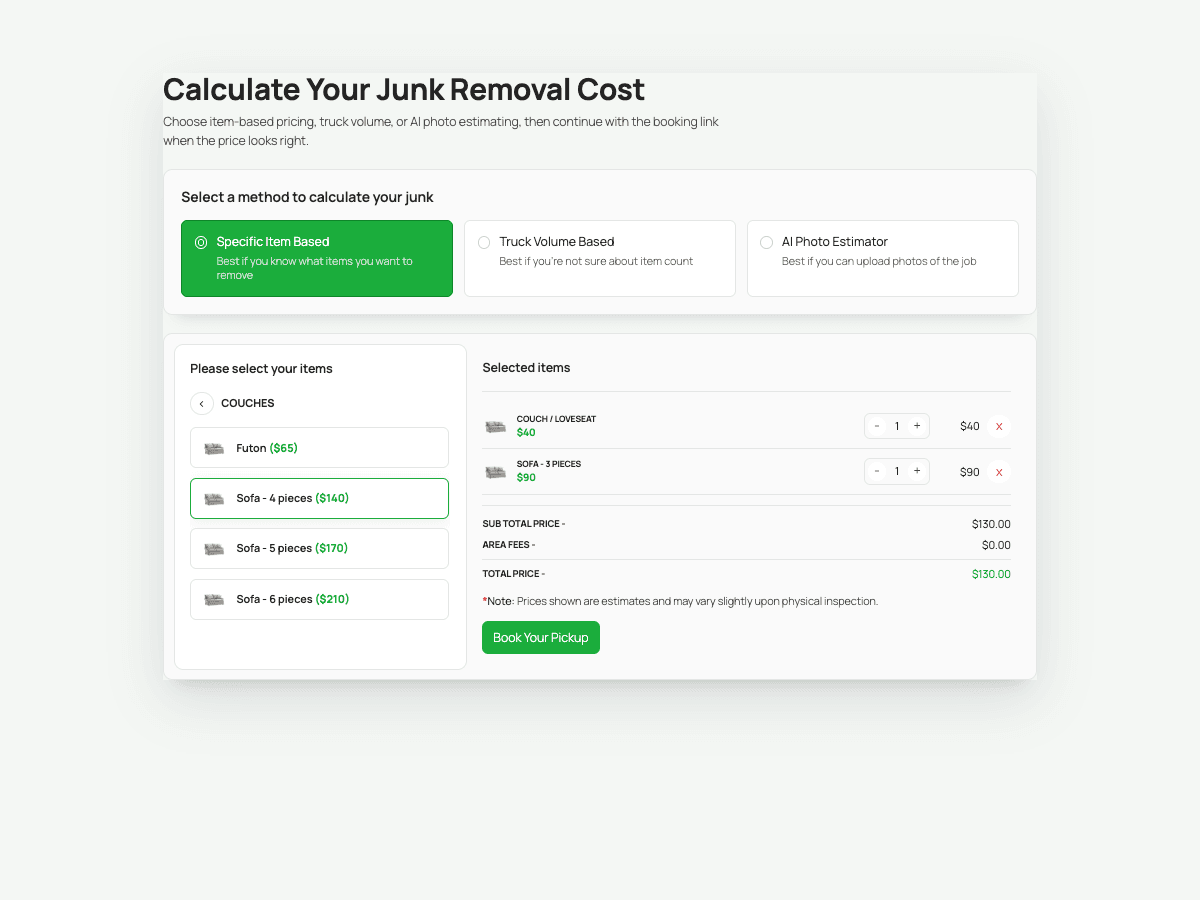
Item pricing lets the customer browse categories and add recognizable objects to the estimate. You can create your own categories, item names, photos, and prices. The running total updates as the customer changes quantities.
This method works well for clean, countable jobs such as furniture, appliances, mattresses, televisions, and exercise equipment. It also gives the customer something better than a vague “starting at” price. They can see which selections built the estimate.
Your catalog should match what your company really charges. Do not publish another operator's numbers or leave demo prices untouched. If you need help building the underlying system, use our full guide on how to price junk removal jobs before putting those numbers in front of customers.
Truck-volume pricing
Truck-volume pricing presents the load sizes your crew uses in the field. You can edit the names, descriptions, images, and prices for each option.
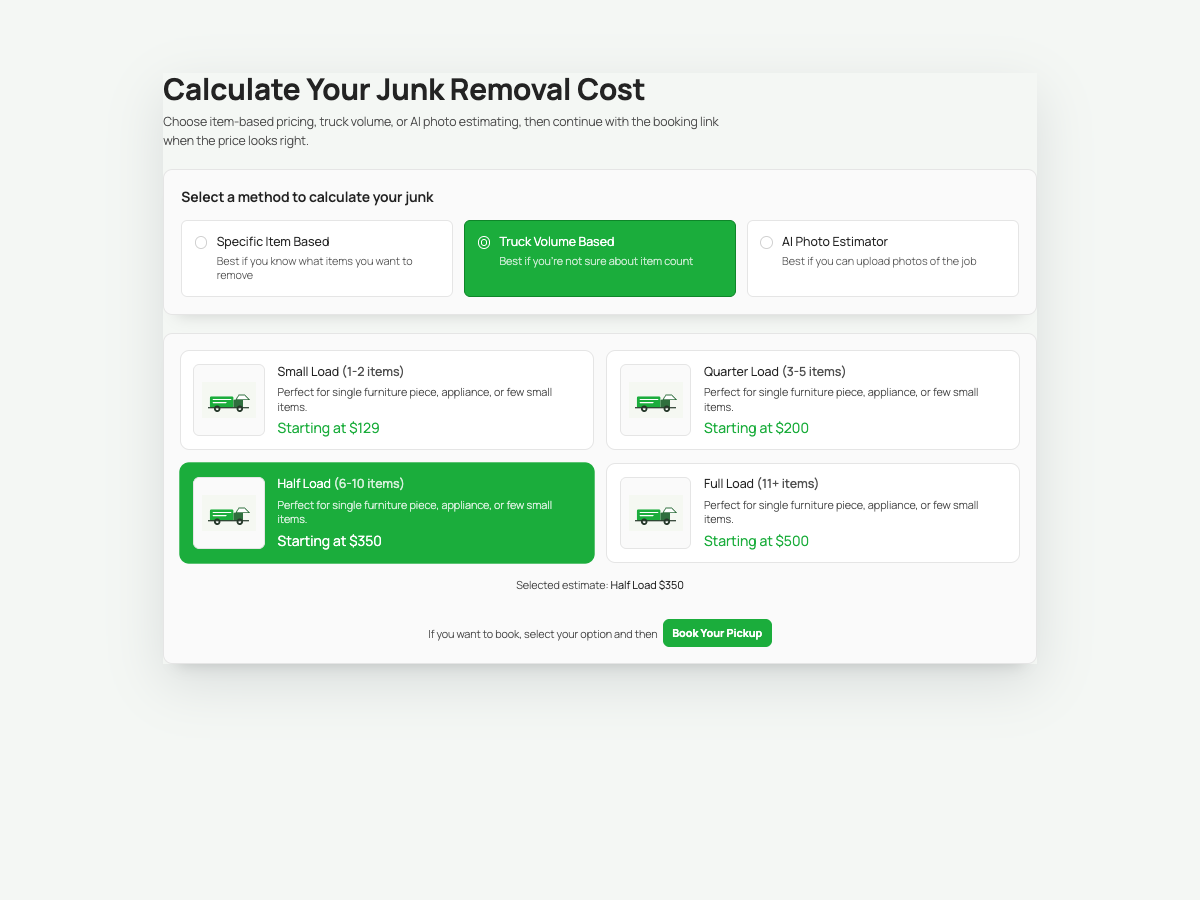
A customer who cannot count every bag in a garage can still recognize a quarter load or half load. Good descriptions help here. Explain the amount in plain language, show a useful image, and keep the fractions consistent with the truck or trailer you send to the job.
Volume pricing still needs judgment. Photos can hide weight, access, labor, and items that carry separate disposal fees. The plugin presents an estimate, and you control the note that explains when the final price may change after inspection.
Optional AI photo estimates
The AI Photo Estimator lets a visitor upload job photos and add notes. The optional feature connects to Junkpath with an API key. Photos are optimized in the browser before they are sent through WordPress to Junkpath for the estimate.
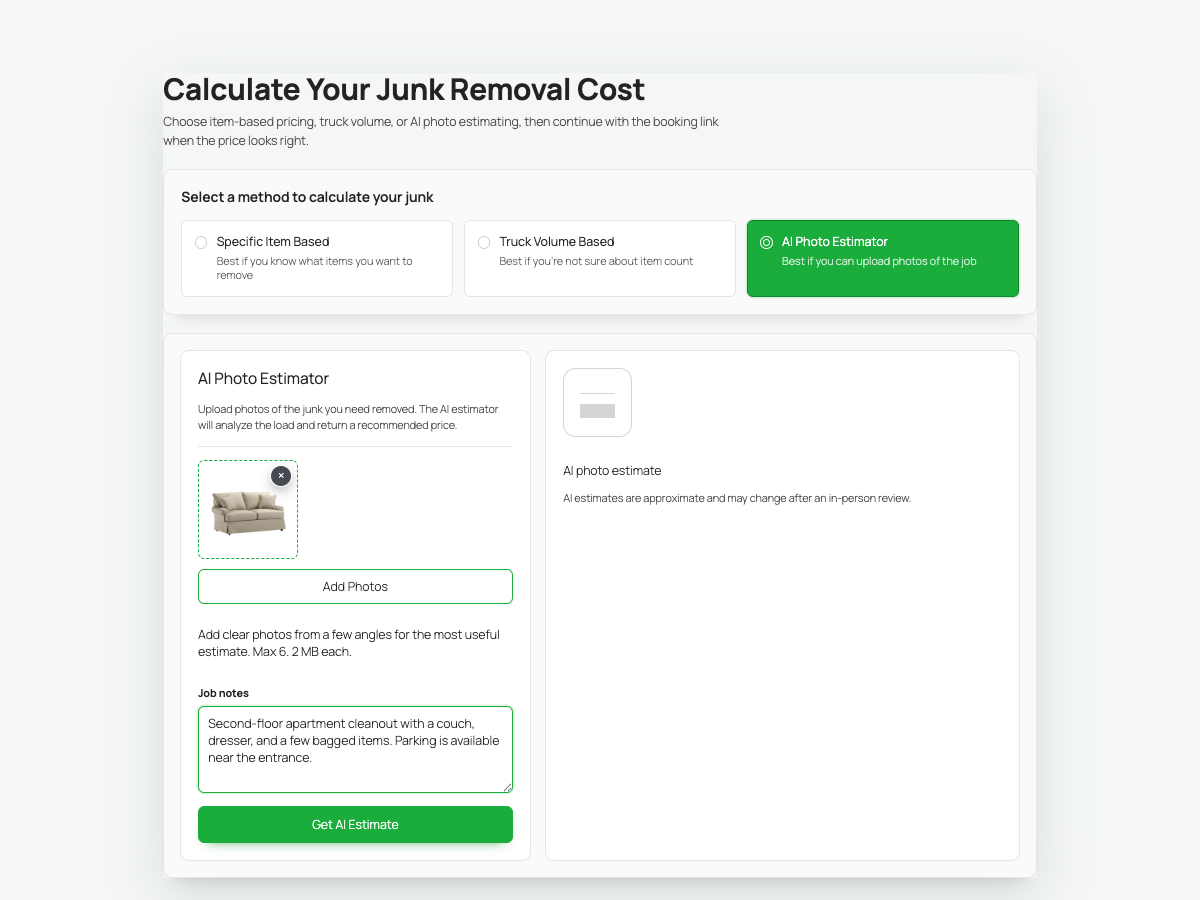
Junkpath is only required for the AI method. The item calculator, truck-volume calculator, design settings, and built-in booking form work without it. Owners can use the full non-AI calculator without creating another account.
Photo estimates work best when the page tells customers what to upload. Ask for clear photos from a few angles and give them a notes field for stairs, parking, elevators, or anything the camera will miss. Better input gives you a more useful starting point.
How does the calculator turn an estimate into a booking request?
The booking action can open the plugin's built-in request form or redirect the customer to another booking page. That gives an operator two clean choices without forcing a specific sales process.
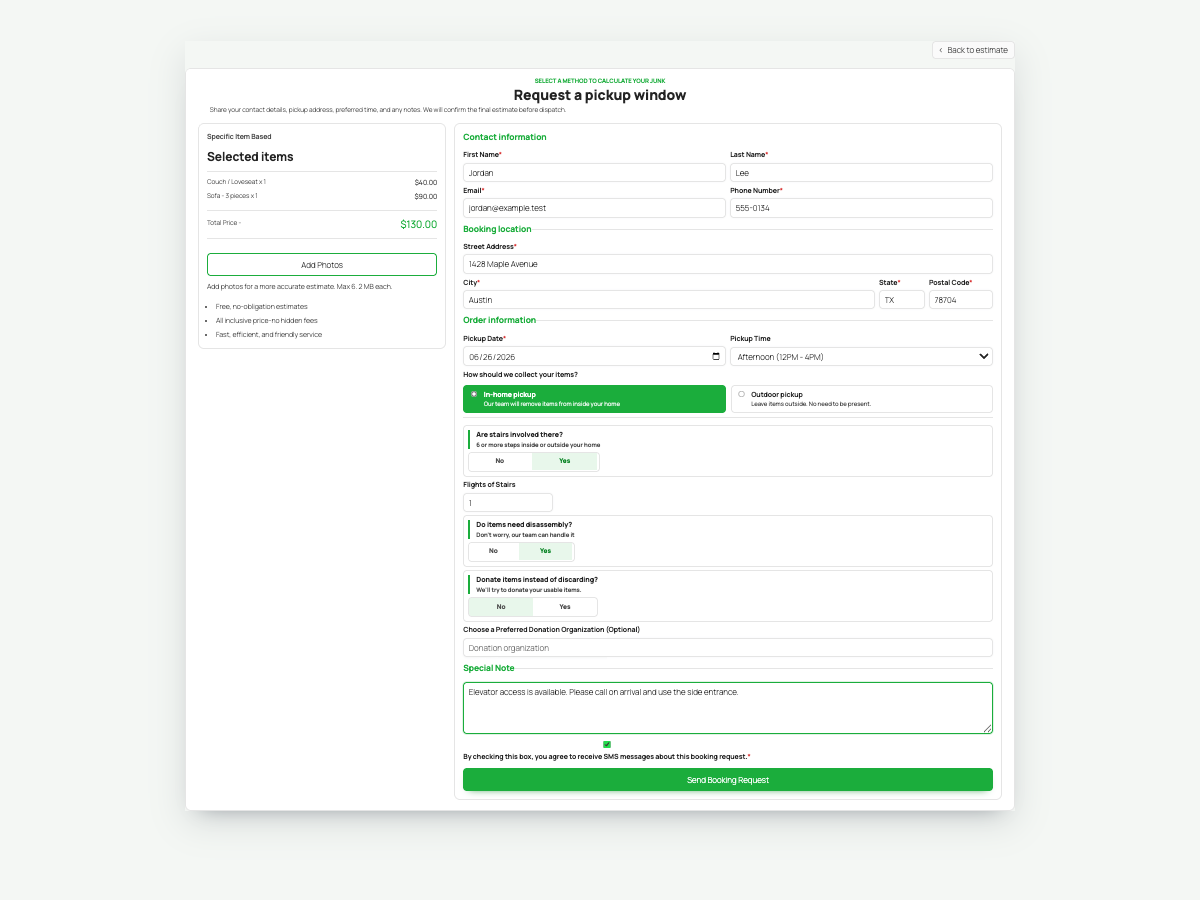
The built-in form can collect contact details, service address, preferred date and time, job notes, and optional photos. You decide which fields appear and which ones are required. ZIP code eligibility can limit requests to the areas you serve, and a success redirect can send the customer to a thank-you page after submission.
The completed request goes to the email address configured in WordPress. When a customer continues from an AI photo estimate, the optimized photos stay visible in the booking summary and can be attached to the email. The plugin removes its temporary attachment copies after the email attempt.
Operators who already have a booking flow can send the button elsewhere. Add the booking URL in the plugin settings or override it in the shortcode. If you use Autopilot, that button can lead into your online booking page so the customer can choose an available time instead of waiting for a callback.
Run the whole path yourself before publishing. Build an estimate on a phone, submit the form, check the email, and confirm the price summary makes sense. A calculator is only useful when the handoff works.
Can the calculator match an existing WordPress site?
Yes. The Design & Branding settings control colors, typography, sizing, spacing, corner radius, shadows, buttons, and layout. Version 1.1.0 includes five calculator templates: Classic Split, Focused Steps, Visual Catalog, Pricing Ledger, and Quote Workspace.
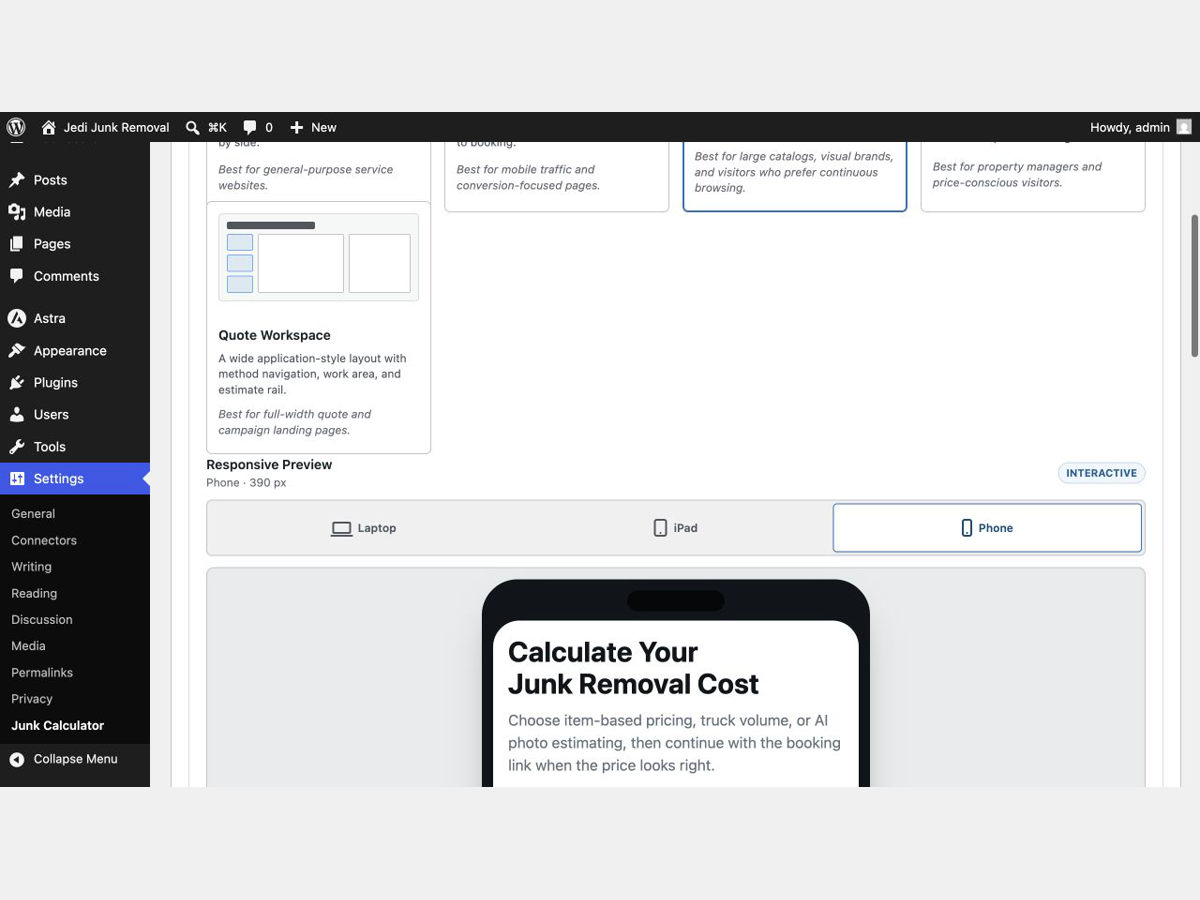
The templates change how customers move through the calculator without replacing your saved prices or branding. Classic Split keeps the catalog and estimate side by side. Focused Steps breaks the quote into smaller decisions. Visual Catalog favors browsing, while Pricing Ledger and Quote Workspace give denser price lists more room.
The admin preview switches between laptop, iPad, and phone widths. Use all three. Most junk removal customers will open the page on a phone while standing near the items they want removed. A beautiful desktop calculator does not help if the item names, load cards, or booking button feel cramped on a small screen.
Keep the design familiar. Match the website's primary color, use the same button language, and resist the urge to turn every setting on. The calculator should feel like part of your site, not a tool pasted in from somewhere else.
How do you install the junk removal calculator?
Installation takes four steps, and the official listing provides the current download.
- Open the Junk Removal Cost Calculator page on WordPress.org, download the plugin, and upload the ZIP through Plugins > Add New > Upload Plugin. You can also install it from the WordPress plugin screen when it appears in search.
- Activate the plugin, then open Settings > Junk Calculator.
- Configure your pricing methods, items, truck sizes, booking behavior, design, and notification email.
- Add the shortcode
[junkreco_calculator]to the page or post where you want the calculator to appear.
Elementor users have two options. The normal shortcode works inside Elementor's Shortcode widget. When Elementor is active, the plugin also registers a native Junk Removal Calculator widget with template and display controls.
Create a dedicated estimate page instead of dropping the calculator at the bottom of a crowded homepage. Give the page a direct title, explain that prices are estimates, and put the calculator near the top. Then link to that page from the header, pricing page, service pages, and every “Get a Quote” button where an instant estimate makes sense.
Who should use this plugin?
The plugin fits junk removal companies that run WordPress and want customers to get useful price guidance before calling. It also works for hauling, property cleanouts, light demolition, donation pickup, and similar services when the catalog and load sizes are rewritten for that business.
It is especially useful when the owner already has a working price sheet. The plugin is the website version of that sheet. It does not decide what a mattress should cost in your market or whether a third-floor carry needs an extra fee. You bring the pricing judgment. The plugin makes it easier for a customer to use.
New operators can still install it, but they should treat the first price list as a draft. Quote real jobs, compare the estimate with what the crew finds on site, and adjust. Our free cubic yard calculator can help match load fractions to the real capacity of your truck or trailer.
The plugin is not a replacement for an on-site inspection on complicated jobs. Dense construction debris, long carries, hoarder cleanouts, and access problems can change the work even when the volume estimate looks right. Say that clearly on the page. Accurate expectations beat a low estimate that turns into an argument in the driveway.
Frequently asked questions
Is the Junk Removal Cost Calculator plugin free?
Yes. The WordPress plugin is free to download and includes specific-item pricing, truck-volume pricing, five calculator templates, design controls, the built-in booking form, the shortcode, and Elementor support. The optional AI Photo Estimator requires a separate Junkpath account and API key.
Can I set my own junk removal prices?
Yes. You control the item catalog, categories, images, quantities, truck-load options, descriptions, and prices. The defaults are a starting structure. Replace them with numbers that fit your truck, labor, disposal costs, market, and quoting rules before publishing the calculator.
Does the plugin work with Elementor?
Yes. You can place the shortcode inside Elementor's standard Shortcode widget. The plugin also adds a native Junk Removal Calculator widget when Elementor is active, so you can select a calculator template and adjust supported display options inside the page builder.
Do I need Junkpath to use the calculator?
No. Junkpath is only required for the optional AI Photo Estimator. Item-based estimates, truck-volume estimates, design controls, WordPress email notifications, and the built-in booking request form work without Junkpath or another external estimate service.
Can I send customers to my current booking page?
Yes. Set the booking action to redirect, then enter your existing booking URL under Settings > Junk Calculator > Booking Form. You can also override the destination for a specific calculator with the shortcode's booking URL setting.
Install the free WordPress plugin
The Junk Removal Cost Calculator WordPress plugin is available now. Download it from WordPress.org, load your real prices, and run a complete test estimate from your phone before adding it to the main navigation.
If you want to see every screen before installing, visit our Junk Removal Cost Calculator overview. It shows the item calculator, truck-volume pricing, AI photo estimates, booking form, and WordPress design controls in one place.
Find more Autopilot guides on Google
Add Autopilot as a preferred source to see more of our latest advice in Google Search and AI results.