
You can talk to the founder.
Roody did. Here is part of our conversation.
September 15 and 16, 2025 · Selected support messages
Roody · Customer
is there a way to set up appointments for estimates?

Andrew · Founder
Just to confirm, would you like to set specific dates for your estimates?
Roody · Customer
what I'm looking for is to be able to schedule an estimate not as a job, but as an estimate. as of right now, we can only schedule jobs
Andrew · Founder
At the moment, estimates don’t appear on the calendar. If you’d like it to show there, you’ll need to schedule it as a job.
Selected excerpts from our support archive, with wording preserved and intervening text omitted. Presented here as a chat excerpt. Roody's surname and photo are kept private. The replies describe the product at the time; the walkthrough below shows what changed.
Table of contents
To schedule an on-site estimate in Autopilot, open Estimates, choose Create Estimate, and turn on Show on Schedule. Set the visit date and time, assign the person going out, and save the estimate. The walkthrough gets its own appointment before you have a hauling job to book.
The appointment Roody was asking for
In the conversation above, Roody wanted an on-site walkthrough on the calendar. We first answered about dates on estimate documents. Even after he explained it, our next reply still talked about sending estimates. He had to say it again: “not what im asking. I want to be able to schedule an on-site estimate walkthrough”.
He had been clear. We were answering the wrong question.
At the time, our answer was to put the visit on the calendar as a job. That workaround got a time onto the schedule, but it asked the owner to call something a job before the customer had agreed to hire them.
Autopilot now lets you schedule the estimate itself. Below is the current web form, captured from the app, with the customer fields left empty.
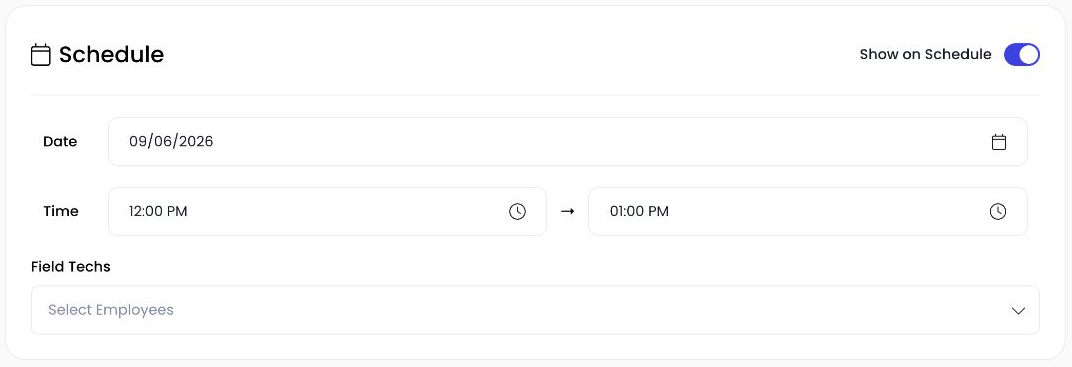
Actual Autopilot screen, captured September 6, 2026. This is an unsaved form showing the scheduling controls, not Roody's customer record.
When a junk removal estimate needs an appointment
Some quotes can start with a photo and a phone call. A walkthrough is useful when you need to see access, the amount of material, or what the customer wants left behind before you give a price.
If you are quoting a house cleanout, for example, the first visit might be you walking through the rooms with the owner. You need an address, a time, and someone assigned to go. You may still need to work out the load size and labor before agreeing on a hauling date.
Putting that visit on the calendar makes the appointment visible to the team. Keeping it attached to an estimate also tells the office what the visit is for. Nobody should have to open a job called “ESTIMATE ONLY” and read a note to find that out.
This guide covers booking the visit. For the price you give after the walkthrough, see our junk removal pricing guide.
How to schedule an on-site estimate in Autopilot
1. Open a new estimate
Go to Estimates in the left menu and choose Create Estimate. Select the contact and the address where the walkthrough will happen. Check the service address carefully if the person has more than one property.
The estimate is the record you will use for the quote. You do not need to create a separate job to make the visit appear on your schedule.
2. Turn on Show on Schedule
In the Schedule card, turn on Show on Schedule. The form opens the date, start time, end time, and Field Techs controls shown in the screenshot.
Leave this off for estimates that do not need a visit, such as a quote you prepare from photos. Sending a price and booking a walkthrough are separate actions.
3. Set the visit time and assign the person going
Choose the date and the time range for the walkthrough. Under Field Techs, select the employee who will meet the customer.
Allow enough time to inspect the work and talk through what is included. When you plan the rest of the day, account for the drive too. A short appointment on paper can still take a chunk of the morning if it is across town.
4. Add the details someone needs at the property
Use Notes for the purpose of the visit and anything the person going out needs to know. For a walkthrough, useful details can include where to park, who will meet you, and which areas need a quote.
Keep the note specific enough that another person could handle the appointment. “Walk the garage and side yard with the owner; quote removal after viewing” gives them more to work with than “estimate.” This is an example note, not text from Roody's conversation.
5. Review the message setting and create the estimate
The form includes a Send "Scheduled" SMS toggle. Review that setting before saving so you know whether you are asking the app to send a scheduling message.
Then choose Create Estimate and check the appointment on your schedule. Confirm the date, time, and assigned person before moving on to the next call.
What we changed in the product
We added scheduling fields to the estimate: a visit date, a time range, assigned field techs, and the choice to show it on the calendar. We built support for scheduled estimates in both the web and mobile apps.
We also keep the visit's schedule status separate from the estimate document's status. Finishing a walkthrough does not mean the customer has approved the price. The estimates list has separate Document Status and Schedule Status columns so those two things can be tracked independently.
When the customer agrees to the work, Autopilot has an estimate-to-job action. Review the hauling date and crew at that point. The time you set aside to look at a property may be very different from the time needed to clear it.
The estimates feature page covers the rest of the quoting workflow. Roody's request was narrower: he needed to put a walkthrough on the calendar. That is the part this change handles.
Try it on your next walkthrough
Open a new estimate and turn on Show on Schedule. Put in the appointment you have agreed with the customer, assign the person going, and check it on the calendar.
If you are evaluating Autopilot, book a demo and ask us to walk through scheduling an estimate, preparing the quote, and creating the job once it is accepted. Bring one of your usual jobs so we can show you the steps you would use.
Find more Autopilot guides on Google
Add Autopilot as a preferred source to see more of our latest advice in Google Search and AI results.