
You can talk to the founder.
Tyler did. Here is part of our conversation.
April 14, 2026 · Selected support messages
Tyler · Customer
how do I recover a deleted invoice?

Andrew · Founder
Unfortunately, there's no way to do that.
Selected excerpts from our support archive, with wording preserved and intervening text omitted. Presented here as a chat excerpt. Tyler's surname and photo are kept private. The replies describe the product at the time; the walkthrough below shows what changed.
Table of contents
If an invoice is still in Autopilot's Recently Deleted area, you can restore it. Open Settings → Account → Recently Deleted, select Invoices, find the record, and choose Restore. Review the confirmation before completing the action.
That is a better answer than the one I gave Tyler in April 2026. Back then, I told him there was no way to recover his deleted invoice. We have since added retained deleted records and restore controls.
This does not mean Tyler's original invoice came back. Records permanently deleted before the recovery system existed cannot be recovered through it. The feature works with records that are still retained in Recently Deleted.
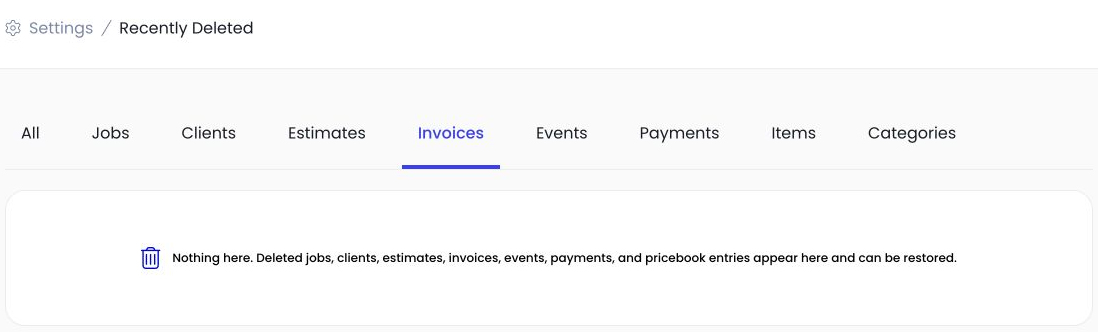
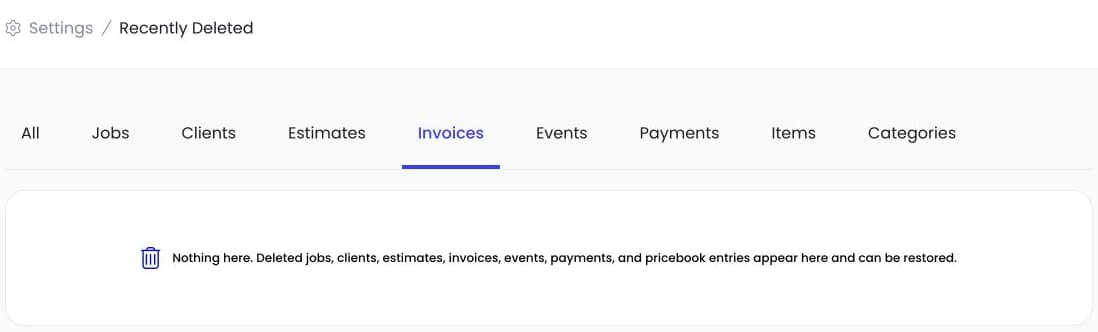
The actual Recently Deleted screen with Invoices selected. This account has no deleted invoices to restore; no invoice was deleted for this walkthrough.
Look for the original before recreating it
If you think you deleted an invoice, first check the normal invoice list and the associated job. Confirm whether the record is missing or simply outside the filter you are viewing.
If it was deleted, look in Recently Deleted before making a replacement. Restoring the original keeps you working with the original record. Creating another invoice is a separate action and can leave you with two records if the first one is later restored.
Find the invoice in Recently Deleted
In the web app, open Settings, choose Account, then Recently Deleted. This area has tabs for different record types. Select Invoices to narrow the list.
Use the invoice number, customer name, amount, and deletion information to identify the right record. If you are working from a customer email or an old invoice PDF, compare the number rather than choosing a record only because the total looks familiar.
Access depends on your account permissions. If you cannot open the page, ask an owner or an administrator with the appropriate access to check it with you.
Restore the retained record
Choose Restore on the invoice and review the confirmation. After the restore completes, return to the invoice list or linked job and check that the record is available again.
Review its details before sending it to a customer or taking another payment. Finding an invoice again does not by itself tell you what has already been paid through every channel. Confirm the payment history and remaining balance as part of your normal invoice review.
The restore action brings a retained record back. It is not a refund, a new charge, or permission to collect the same balance twice.
If the invoice belongs to another deleted record
An invoice can depend on a job or customer record that is also in the trash. Autopilot checks for that relationship during restoration.
When the parent record is also deleted and available in Recently Deleted, the app can offer Restore both. Read which records it is proposing to restore before confirming. The combined restore is handled together so you do not deliberately restore a child record while leaving its required parent deleted.
If the app cannot find or restore a required record, read the error and contact support with the invoice number. Do not keep clicking the same action and assume an error message means the restore partly succeeded.
What cannot be recovered here
Recently Deleted only helps while the record is retained. It cannot restore an invoice that was permanently deleted before this system existed, or one that has since been permanently removed.
Delete permanently is different from Restore. The permanent-deletion confirmation explains the consequences and requires acknowledgment that the action cannot be undone. If your goal is to recover an invoice, leave that action alone.
We are not promising a particular retention period in this guide. Check what is actually available in the account, and keep the business records you need through your normal recordkeeping process.
Check the result before contacting the customer
Once the invoice is restored, verify the customer, work details, total, and payment history. Then decide whether you need to resend it. A customer who already has a copy may not need another message at all.
For the wider billing workflow, see Autopilot invoicing. If you are evaluating the app, book a demo and ask to see Recently Deleted alongside invoice creation and payment history. Knowing how to recover a mistake is part of learning the billing tools.
Find more Autopilot guides on Google
Add Autopilot as a preferred source to see more of our latest advice in Google Search and AI results.