
A customer question worth answering.
Abisoye asked our support team for a way to stop a scheduled blast. Edward handled this part of the conversation.
May 3 and 4, 2026 · Selected support messages
Abisoye · Customer
hwo can i delete or edit a schedule blast sms?
Edward · Support
Hey there, thanks for waiting. So as of the moment, we do not have a way to edit a blast SMS. You can create a new one if you need to make some changes, but we can't edit it yet.
Abisoye · Customer
I have one going out in 30min with only half of the list I want to delete it and create a new one with the full list
Selected excerpts from our support archive, with wording preserved and intervening text omitted. Presented here as a chat excerpt. Abisoye's surname and photo are kept private. The replies describe the product at the time; the walkthrough below shows what changed.
Table of contents
To stop a scheduled SMS blast in Autopilot, open it in Marketing, choose Cancel, and read the confirmation before selecting Cancel Blast. Cancel stops the remaining unsent batches. It cannot recall texts already sent.
Abisoye asked for this when a campaign was due to go out soon. He thought it had only half the intended list and wanted to stop it and start again. At the time, our support reply said editing was not available.
Later in the same conversation, he reported that the updated list had been picked up and the intended recipients received the text. So this is not a story about a campaign we rescued. It is a real request for controls an owner needs when plans change.
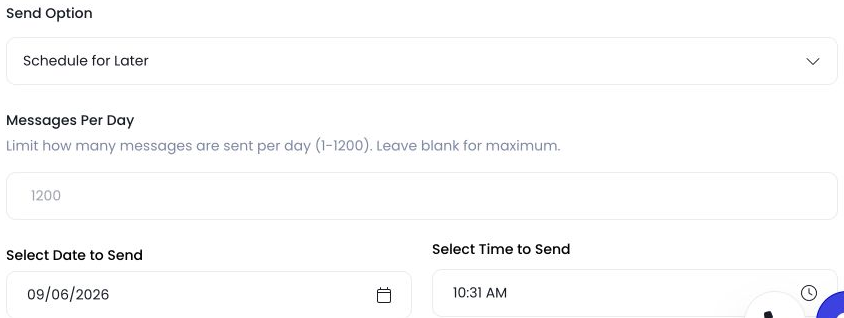
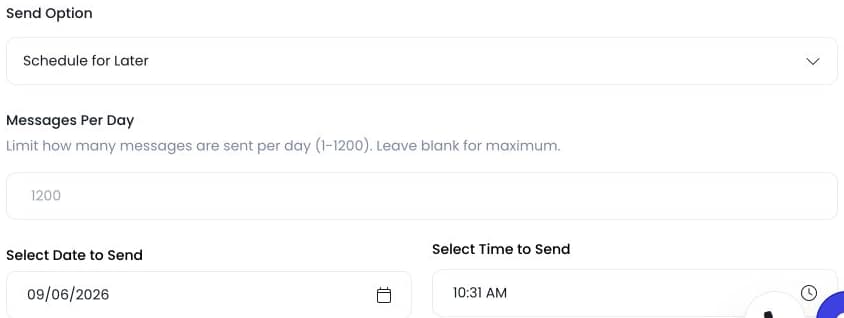
The actual SMS scheduling fields in an unsaved blast. This shows where send timing is set; cancellation controls appear on eligible existing blasts. No message was scheduled or sent.
Open the campaign before creating a replacement
Go to Marketing and open the relevant SMS blast. Check the campaign name, scheduled time, and current status. If you already have a scheduled send, creating a second campaign does not automatically stop the first one.
Autopilot now has edit, pause, resume, and cancel controls. Which ones appear depends on the blast's status and whether dispatch has started.
Choose the action that fits the situation
| What you need | Action | What to check |
|---|---|---|
| Stop the remaining campaign permanently | Cancel | Read the confirmation; sent texts cannot be recalled. |
| Hold sending while you review it | Pause | Check the status shows paused before assuming it is on hold. |
| Continue a paused campaign | Resume | Review the message, recipients, and timing first. |
| Change a campaign before dispatch | Edit | Editing is restricted once dispatch has started. |
Pause is useful when you need time to inspect a campaign. Cancel is the choice when you want to stop the remaining send and do not intend to resume it. The cancellation confirmation says the action cannot be undone.
Cancel a scheduled blast
Open the blast and select Cancel. The confirmation identifies the blast and explains that batches not yet sent will not be sent. Choose Cancel Blast only after checking that you have the right campaign.
After confirming, check its status. Do not rely only on the fact that you clicked a button. If the app reports an error or the status did not change, review that result before creating another campaign.
Cancellation is available for scheduled, processing, and paused blasts. A completed campaign has already finished its send, so there is no remaining scheduled work to cancel.
Editing has a cutoff
The app allows editing while a blast is scheduled. It also permits editing a paused blast when dispatch has not yet queued batches. Once that process has begun, pausing does not make the message freely editable again.
This matters if you catch a typo after sending has started. You may be able to stop remaining batches, but you cannot rewrite the message on phones that already received it. Review the send state before deciding what to do next.
If you need a replacement campaign, first establish what happened to the original. Review who has already received a message and avoid sending those people the same offer again by accident.
Check the list and the message together
Abisoye's request was about recipients. Before a blast goes out, check both the message and the list it will use. An offer can be correct while the audience is wrong, or the list can be correct while the date in the text is wrong.
Keep a simple review habit: open the campaign, read the message as the customer will see it, inspect the recipient selection, and confirm the scheduled time. Do that before the send starts, while the editing controls are still available.
Our SMS blast feature page covers the broader tool. The past-customer follow-up guide covers planning outreach. Cancellation is the control you use when a particular send needs to stop.
Know where the stop button is before you need it
Open one of your scheduled campaigns and locate its available actions. You do not need to cancel it to learn where the control lives. If the options differ from what you expect, note its status and whether it has begun sending.
For help with a specific blast, send support the campaign name and the change you need. Avoid creating a replacement while you are still unsure whether the original is going out.
Find more Autopilot guides on Google
Add Autopilot as a preferred source to see more of our latest advice in Google Search and AI results.